
Delete Old iCloud Backups on iPhone Without Losing Data: Complete Guide
Running out of iCloud storage is a common problem for many iPhone users. One of the biggest reasons your iCloud storage becomes full is old device backups that are no longer needed.
If you recently upgraded to a new iPhone, your previous device backup may still be stored in iCloud and continue using storage space. Removing these outdated backups can help free up iCloud storage without affecting the data currently stored on your iPhone.
However, many users hesitate to delete iCloud backups because they worry about losing photos, messages, contacts, or other important files.
The important thing to understand is that deleting an old iCloud backup only removes that backup copy stored in iCloud. It does not immediately delete the data currently available on your iPhone.

Quick Answer: Can You Delete Old iCloud Backups?
Yes. You can safely delete old iCloud backups from devices you no longer use.
Deleting an iCloud backup removes the saved backup file from Apple's cloud storage. It does not erase the photos, apps, messages, or files currently stored on your iPhone.
However, before deleting a backup, make sure it belongs to an old device and that you still have a recent backup of your current iPhone.
What Happens When You Delete an iCloud Backup?
An iCloud backup is a saved copy of your device data that can be used to restore an iPhone when setting up a new device or recovering from a problem.
It is separate from the data currently stored on your iPhone.
| Action | Result |
|---|---|
| Delete an old iCloud backup | The backup copy stored in iCloud is removed |
| Delete photos from iPhone | Your photos may be removed depending on your iCloud Photos settings |
| Delete an iPhone backup | Your current iPhone data remains unchanged |
| Turn off iCloud Backup | Your device stops creating future backups |
For example, if you upgraded from an older iPhone to a newer model, the previous iPhone backup may still remain in iCloud. Removing that unused backup can recover several gigabytes or more of storage space.
Ultra-Thin MagSafe Back Plate Series
ZEERA MagSkin Air Ultra-Thin Magnetic Plate
- Only 0.3mm thin
- MagSafe compatible
- Preserves Air feel
- Light back guard
- Case-free carry

ZEERA MagSkin Pro Ultra-Thin Magnetic Back Plate
- Ultra-thin Pro fit
- MagSafe compatible
- Bare-phone feeling
- Camera deco guard
- Minimal daily carry
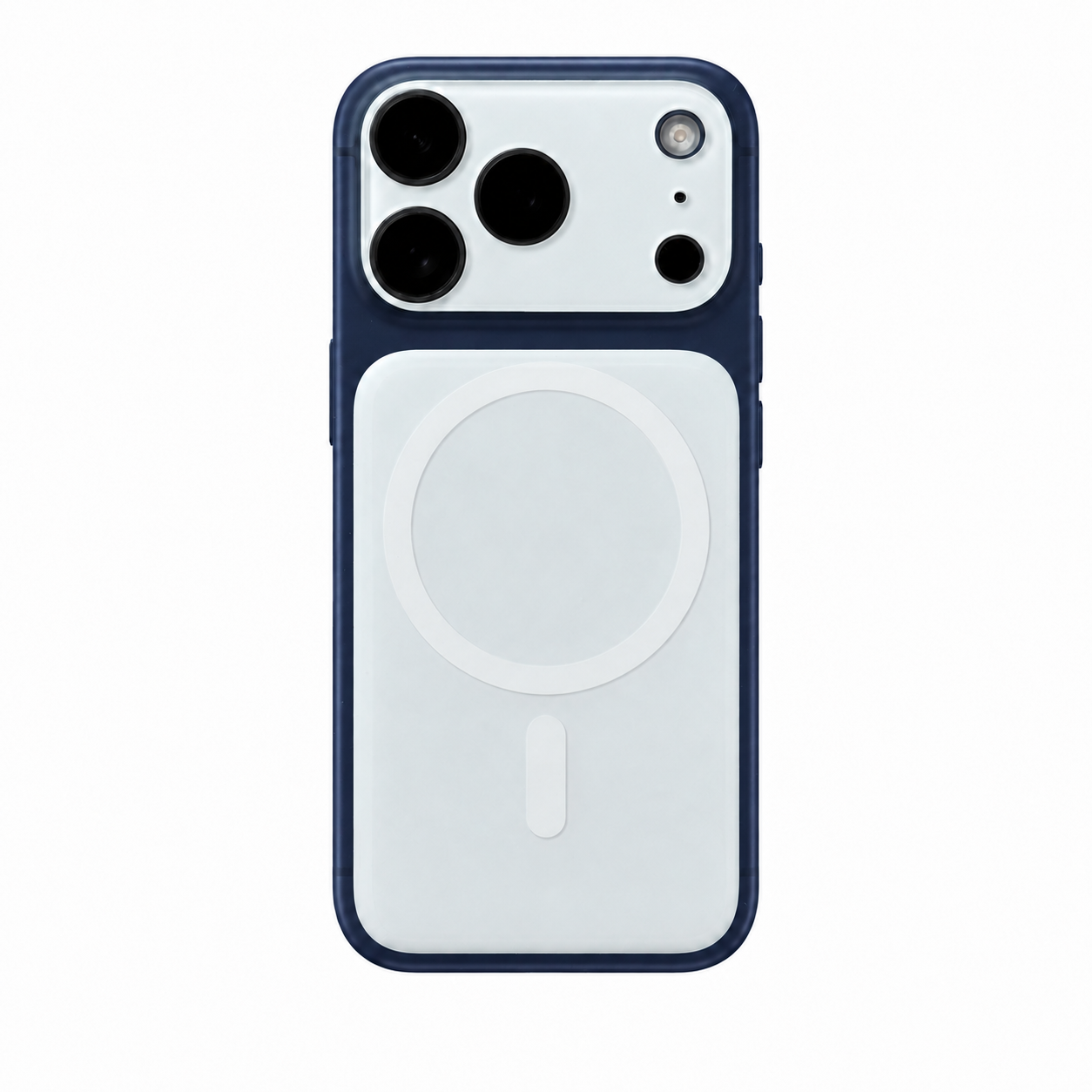
ZEERA AirFlat Lens Cover for iPhone Air
- Makes back flat
- Stops desk wobble
- Protects camera lens
- Slim matching look
- Easy clean design

How to Delete Old iCloud Backups on iPhone
Apple allows you to manage and delete iCloud backups directly from your iPhone. The exact menu name may vary slightly depending on your iOS version.
Step 1: Open iCloud Storage Settings
- Open the Settings app on your iPhone.
- Tap your name at the top of the screen.
- Select iCloud.
- Tap Storage or Manage Account Storage.
Step 2: Select the Backup You Want to Remove
- Tap Backups.
- You will see a list of devices with iCloud backups.
- Select the iPhone or device backup you no longer need.
Step 3: Delete the Old Backup
- Tap Turn Off and Delete from iCloud.
- Confirm the deletion.
This option disables iCloud Backup for that specific device and removes its existing backup from iCloud. It does not turn off other iCloud services on your iPhone.
Which iCloud Backups Should You Delete?
Before deleting any backup, check the device name and backup date.
You can usually remove:
- Backups from iPhones you no longer own
- Backups from devices replaced by a newer iPhone
- Old backups that have not been updated for a long time
You should consider keeping:
- The latest backup of your current iPhone
- A backup you may need for restoring an older device
Does Deleting iCloud Backup Delete Photos?
No, deleting an iCloud backup does not immediately delete photos stored on your iPhone.
However, it is important to understand the difference between iCloud Backup and iCloud Photos.
- iCloud Backup: Creates a backup copy of your iPhone settings, app data, device configuration, and other information needed for restoration.
- iCloud Photos: Syncs your photos and videos across Apple devices through iCloud.
If your photos are already synced with iCloud Photos, deleting an iCloud Backup will not remove them.
If your photos are only stored on your iPhone and not synced anywhere else, deleting the backup does not erase them immediately, but you may not be able to recover them if your device is lost or damaged.
[Internal Link: iCloud Photos Guide]
How Much iCloud Storage Can You Free Up?
The amount of storage you recover depends on the size of the deleted backup.
Older iPhone backups can range from hundreds of megabytes to several gigabytes, especially if the device contains many apps and local data.
Deleting unused backups is one of the easiest ways to free up iCloud storage without removing personal files.


How to Prevent Old iPhone Backups From Taking Space
If you have multiple Apple devices, old backups can continue using iCloud storage.
To manage them:
- Open Settings.
- Tap your Apple Account name.
- Select iCloud.
- Open Manage Account Storage.
- Review your backups and remove devices you no longer use.
Can You Recover a Deleted iCloud Backup?
In most cases, a deleted iCloud backup cannot be recovered.
Before removing a backup, confirm:
- The backup belongs to an old device
- The backup date is no longer useful
- Your current iPhone has another recent backup
Other Ways to Free Up iCloud Storage
Deleting old backups is only one way to manage iCloud storage. You can also:
- Remove unnecessary files from iCloud Drive
- Delete large message attachments
- Review apps using iCloud storage
- Manage iCloud Photos storage
[Internal Link: Ways to Free Up iPhone Storage]
Frequently Asked Questions
Will deleting an iCloud backup delete everything on my iPhone?
No. Deleting an iCloud backup only removes the backup stored in iCloud. Your current iPhone data remains unchanged.
Should I delete old iPhone backups?
Yes, if they belong to devices you no longer use. Removing old backups can free up iCloud storage space.
Does deleting an old backup free iCloud storage immediately?
Yes. Once the backup is deleted, the storage used by that backup becomes available again.
How often should I check iCloud backups?
Most users only need to review their backups after upgrading to a new iPhone or when iCloud storage becomes full.
Final Thoughts
Deleting old iCloud backups is a simple way to recover storage space without removing the data currently stored on your iPhone.
The safest approach is to remove backups from devices you no longer use while keeping a recent backup of your current iPhone. Regularly checking your iCloud storage can help prevent unexpected storage issues in the future.


