
Chevy Trailblazer Apple CarPlay funktioniert nicht? Behebungsanleitung & Lösungen
Aktualisiert 28. Juli 2026
Wenn Apple CarPlay in Ihrem Chevy Trailblazer nicht funktioniert, kann das Problem an der gespeicherten drahtlosen Verbindung, den iPhone-Berechtigungen, dem USB-Kabel, der Fahrzeugsoftware oder dem Infotainmentsystem liegen.
Die Symptome können ebenfalls variieren. Drahtloses CarPlay verbindet sich möglicherweise nicht mehr, während USB noch funktioniert, das iPhone lädt zwar, startet aber CarPlay nicht, oder die Verbindung bricht während der Fahrt wiederholt ab.
Beginnen Sie mit dem ersten Schritt zur Fehlerbehebung unten und fahren Sie in der angegebenen Reihenfolge fort. Die früheren Lösungen beheben häufige temporäre Probleme und Kopplungsprobleme. Netzwerk- und Infotainment-Resets sollten für später aufbewahrt werden.

Kurzantwort
Starten Sie zuerst das iPhone neu und schalten Sie den Trailblazer vollständig aus. Wenn CarPlay immer noch nicht funktioniert, entfernen Sie die gespeicherte Verbindung sowohl vom iPhone als auch vom Fahrzeug und koppeln Sie sie dann erneut. Testen Sie USB-CarPlay mit einem datenfähigen Kabel, um festzustellen, ob das Problem nur drahtloses CarPlay betrifft. Aktualisieren Sie die iPhone- und Fahrzeugsoftware, bevor Sie Netzwerk- oder Infotainment-Einstellungen zurücksetzen.
So beheben Sie Probleme mit Apple CarPlay in Ihrem Chevy Trailblazer
1. Starten Sie das iPhone und den Trailblazer neu
Starten Sie das iPhone neu, schalten Sie dann den Trailblazer aus und lassen Sie das Infotainment-Display vollständig herunterfahren. Öffnen und schließen Sie bei Bedarf die Fahrertür, starten Sie dann das Fahrzeug neu und testen Sie CarPlay erneut.
Dies kann ein temporäres Problem mit der Bluetooth-, Wi-Fi- oder Infotainment-Verbindung beheben.
2. Überprüfen Sie die CarPlay-, Wi-Fi- und Bluetooth-Einstellungen
Stellen Sie sicher, dass Wi-Fi, Bluetooth und Siri auf dem iPhone aktiviert sind. Öffnen Sie dann Einstellungen > Allgemein > CarPlay und bestätigen Sie, dass der Trailblazer noch aufgeführt ist.
Überprüfen Sie auch die Bildschirmzeitbeschränkungen und stellen Sie sicher, dass CarPlay zugelassen ist.
3. Verbindung entfernen und erneut koppeln
Löschen Sie das iPhone aus der gespeicherten Telefonliste des Trailblazers. Auf dem iPhone vergessen Sie das Chevrolet Bluetooth-Gerät und wählen Sie Dieses Auto vergessen unter Einstellungen > Allgemein > CarPlay.
Starten Sie beide Geräte neu, koppeln Sie das iPhone erneut und akzeptieren Sie die CarPlay-Eingabeaufforderungen auf beiden Bildschirmen.
4. CarPlay mit einem USB-Kabel testen
Verbinden Sie das entsperrte iPhone direkt mit dem Trailblazer über ein datenfähiges USB-Kabel.
- Wenn USB-CarPlay funktioniert, liegt das Problem wahrscheinlich nur an der drahtlosen Kopplung.
- Wenn das iPhone nur lädt, versuchen Sie ein anderes Kabel oder einen anderen USB-Datenanschluss.
- Wenn weder kabelgebundenes noch drahtloses CarPlay funktioniert, fahren Sie mit Softwareprüfungen fort.
5. Aktualisieren Sie die iPhone- und Fahrzeugsoftware
Suchen Sie nach einem iPhone-Update unter Einstellungen > Allgemein > Softwareupdate. Bei unterstützten Trailblazer-Modellen können Fahrzeugupdates unter Einstellungen > System > Fahrzeugsoftware angezeigt werden.
Starten Sie das iPhone und das Fahrzeug nach der Installation eines Updates neu.
6. Netzwerk- oder Infotainment-Einstellungen zurücksetzen
Wenn CarPlay immer noch keine Verbindung herstellt, setzen Sie die Netzwerkeinstellungen des iPhones unter Einstellungen > Allgemein > iPhone übertragen oder zurücksetzen > Zurücksetzen zurück.
Verwenden Sie einen vollständigen Infotainment-Reset nur als letzten Schritt, da dabei möglicherweise gespeicherte Telefone, Wi-Fi-Netzwerke, Radiosender und Benutzerprofile gelöscht werden.
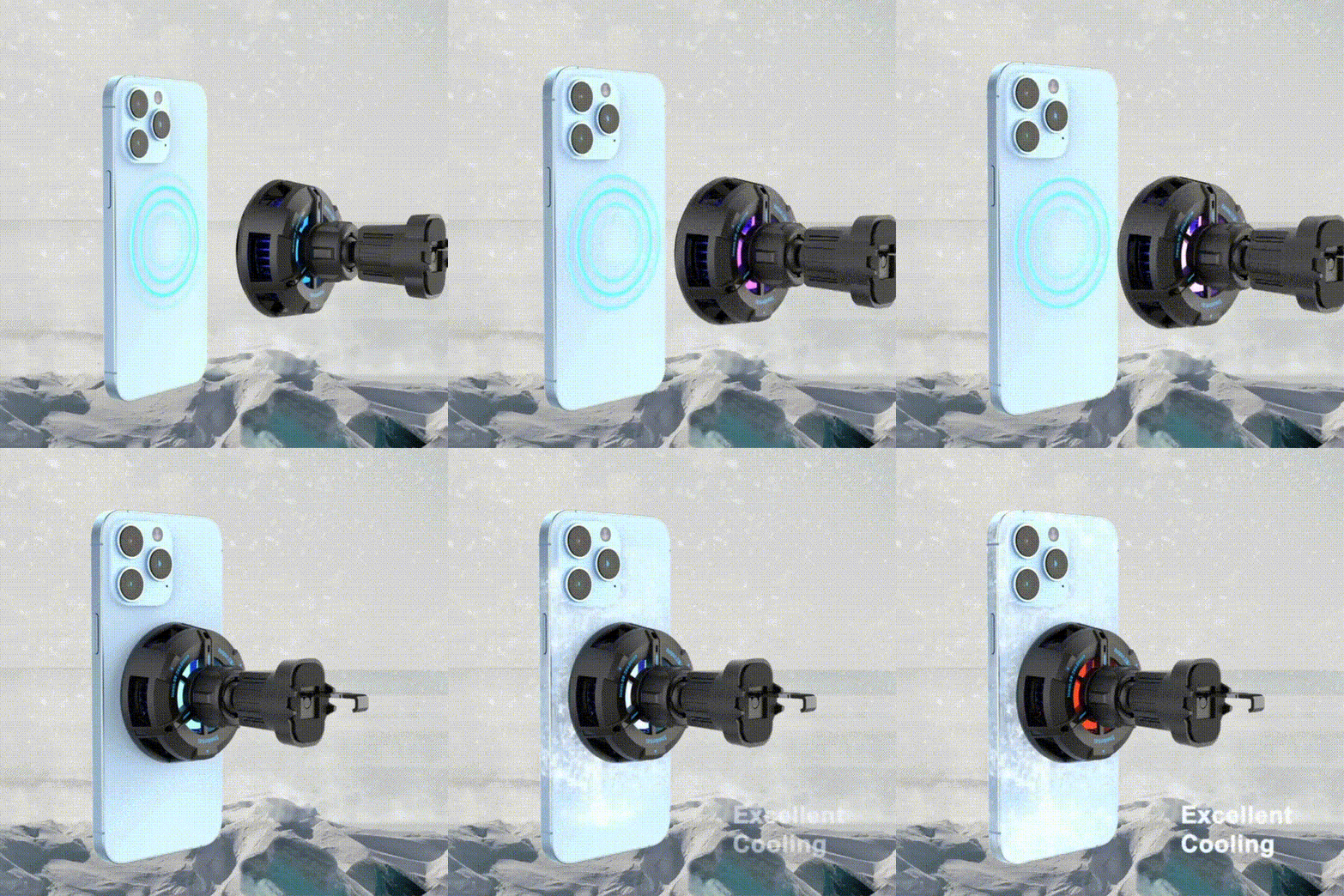
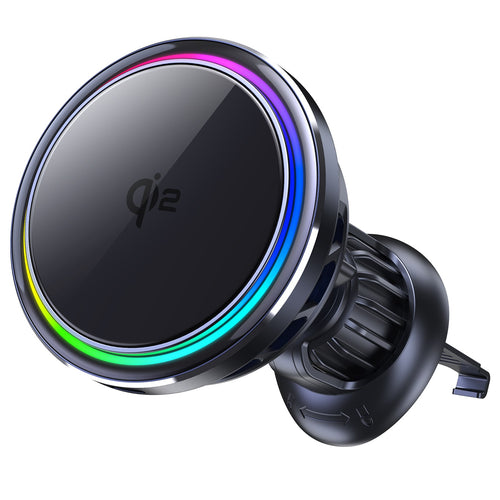
Ein Autoladegerät kann ein CarPlay-Kopplungs- oder Softwareproblem nicht beheben. Der ZEERA SuVolt Gen5 Qi2.2 Active Cooling Car Charger kann jedoch ein kompatibles iPhone sicher montiert, mit Strom versorgt und kühler halten, während es drahtloses CarPlay für Navigation, Anrufe und Musik auf längeren Fahrten verwendet.
Häufige Probleme und Lösungen für Chevy Trailblazer CarPlay
Drahtloses CarPlay funktioniert nicht, aber USB funktioniert
Wenn kabelgebundenes CarPlay normal funktioniert, können das iPhone, die CarPlay-Apps und das zentrale Display kommunizieren. Das verbleibende Problem hängt in der Regel mit der gespeicherten drahtlosen Verbindung zusammen.
Stellen Sie sicher, dass Bluetooth und Wi-Fi aktiviert sind, überprüfen Sie die automatische Verbindung für das CarPlay-Netzwerk und entfernen Sie alte Chevrolet-Einträge, bevor Sie erneut koppeln. Trennen Sie das iPhone während des Tests auch von anderen Fahrzeugen oder drahtlosem Zubehör.
Das iPhone lädt, aber CarPlay startet nicht
Laden bestätigt nicht, dass das Kabel oder der USB-Anschluss Daten unterstützt. Versuchen Sie ein anderes hochwertiges Datenkabel und einen anderen kompatiblen USB-Anschluss.
Entsperren Sie das iPhone, bevor Sie es verbinden, akzeptieren Sie alle Berechtigungsaufforderungen und wählen Sie das CarPlay-Symbol manuell aus, wenn es nicht automatisch startet. Überprüfen Sie den Ladeanschluss des iPhones auf Fusseln oder Schmutz, wenn das Kabel locker sitzt.
CarPlay trennt sich immer wieder
Für kabelgebundenes CarPlay ersetzen Sie das Kabel und überprüfen Sie, ob das Berühren oder Bewegen des Kabels die Verbindung unterbricht. Ein abgenutztes Kabel, ein verschmutzter iPhone-Anschluss oder ein beschädigter USB-Anschluss des Fahrzeugs können wiederholte Unterbrechungen verursachen.
Für drahtloses CarPlay starten Sie beide Geräte neu und stellen Sie die gespeicherte Verbindung wieder her. Trennen Sie vorübergehend AirPods, eine andere Fahrzeugverbindung oder anderes Bluetooth-Zubehör während des Tests.
CarPlay bleibt beim Verbinden oder Laden hängen
Schalten Sie das Fahrzeug vollständig aus, anstatt einen weiteren schnellen Motorneustart durchzuführen. Starten Sie das iPhone neu, entfernen Sie die gespeicherte Verbindung von beiden Geräten und koppeln Sie sie erneut.
Eine erfolgreiche USB-Verbindung kann auch dazu beitragen, die anfänglichen Berechtigungen abzuschließen, bevor Sie drahtloses CarPlay erneut versuchen.
CarPlay verbindet sich, hat aber keinen Ton
Vergewissern Sie sich, dass der Trailblazer CarPlay als aktuelle Audioquelle verwendet. Trennen Sie AirPods oder andere Bluetooth-Kopfhörer, die stattdessen den Ton empfangen könnten.
Musik, Navigationsansagen und Telefonanrufe können unterschiedliche Lautstärkepegel verwenden. Passen Sie die Fahrzeuglautstärke an, während der betroffene Ton aktiv abgespielt wird.
Telefonanrufe sind verzögert
Vergleichen Sie einen Anruf über drahtloses CarPlay mit einem Anruf über USB-CarPlay. Wenn die Verzögerung nur drahtlos auftritt, stellen Sie die drahtlose Verbindung wieder her und trennen Sie andere Bluetooth-Geräte.
Wenn mehrere iPhones die gleiche Verzögerung im Trailblazer aufweisen, ist es wahrscheinlicher, dass das Infotainmentsystem oder die Fahrzeugsoftware Aufmerksamkeit erfordert.
Nachrichtenbenachrichtigungen werden nicht angezeigt
Überprüfen Sie die Benachrichtigungseinstellungen für Nachrichten, Siri und "Benachrichtigungen ankündigen" auf dem iPhone. Der Fokusmodus "Fahren" kann auch Benachrichtigungen unterdrücken oder einschränken, während das Fahrzeug in Bewegung ist.
Wenn Nachrichten auf dem iPhone, aber nicht in CarPlay angezeigt werden, entfernen Sie die CarPlay-Verbindung und stellen Sie sie wieder her, nachdem Sie die Berechtigungen bestätigt haben.
ZEERA MagSafe Drahtlose Ladereihe
ZEERA MagTri Gen2 Qi2.2 Faltbares MagSafe Ladegerät
- 25W Qi2.2
- 3-in-1 faltbar
- Aktive Kühlung
- Reisegröße
- Für 3 Geräte bereit
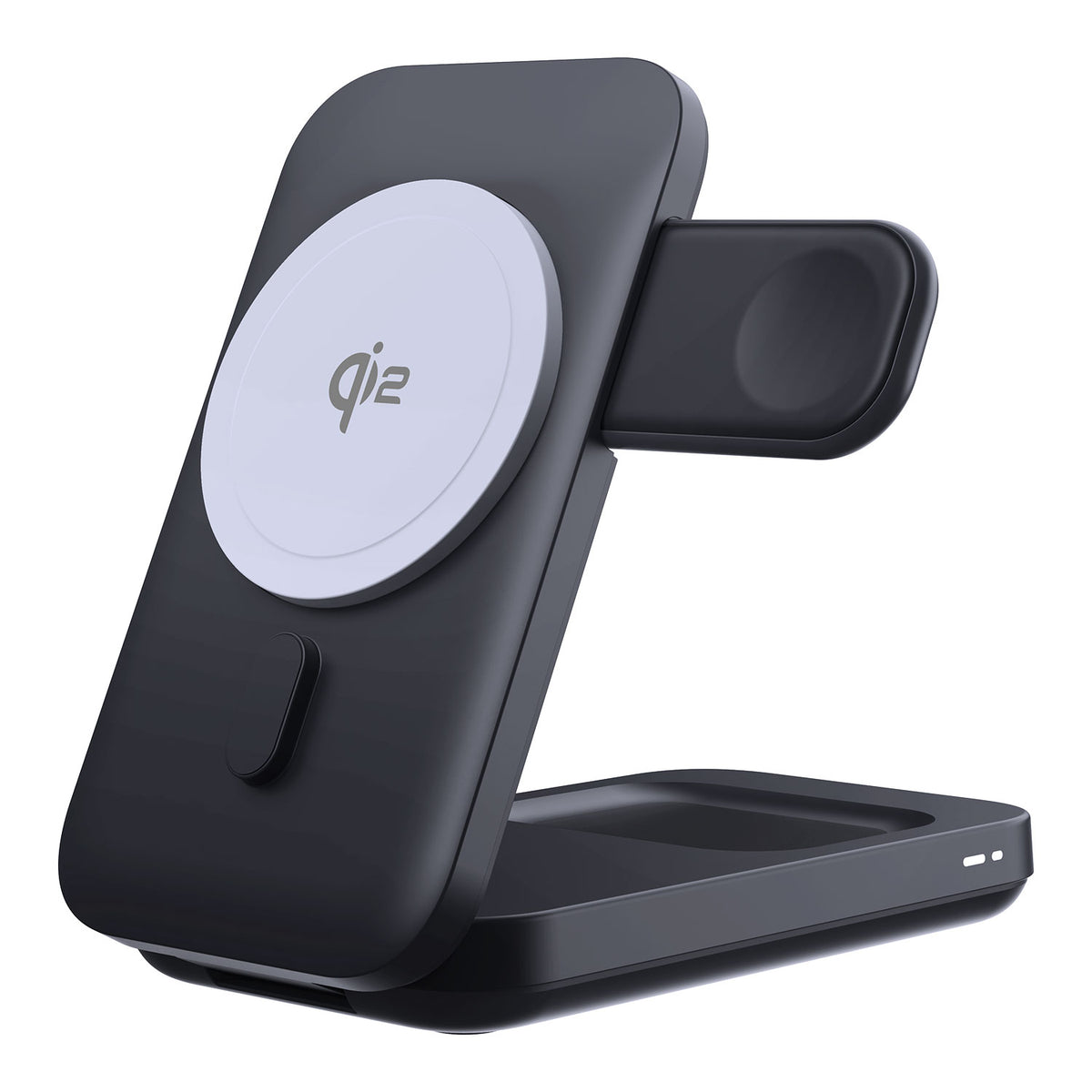
ZEERA MagSion 5-in-1 Dual MagSafe Ladeständer
- Dual MagSafe
- 5-in-1 Ständer
- Uhr laden
- Winkel einstellbar
- Sauberes Setup
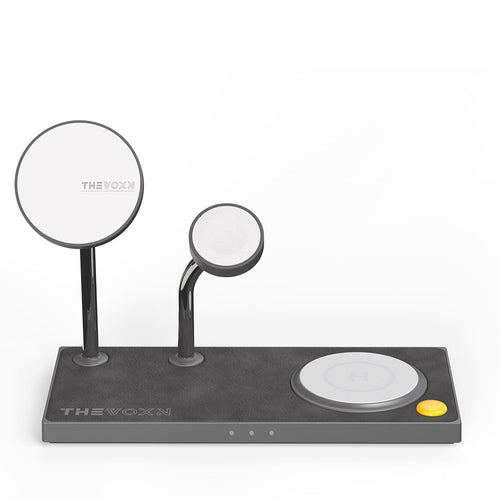
ZEERA SuVolt Gen5 Qi2.2 Aktives Kühl-Autoladegerät
- 25W Qi2.2
- Aktive Kühlung
- Starker Magnet
- CarPlay-fähig
- Wärmeregulierung
Wann Sie Chevrolet oder einen Händler kontaktieren sollten
Händlerunterstützung ist eher angebracht, wenn das Problem nicht mehr auf ein iPhone oder eine Art von CarPlay-Verbindung beschränkt ist.
Zum Beispiel kann das Problem fahrzeugbezogen sein, wenn kabelgebundenes CarPlay, drahtloses CarPlay und Bluetooth alle nicht verfügbar sind oder wenn der Infotainment-Bildschirm einfriert, leer wird oder sich von selbst neu startet. Wiederholte USB-Fehler mit verschiedenen Kabeln und Telefonen können auch auf einen beschädigten Anschluss oder einen Infotainment-Fehler hinweisen.
Bevor Sie einen Servicetermin vereinbaren, testen Sie nach Möglichkeit ein anderes kompatibles iPhone. Wenn das zweite Telefon normal verbindet, fahren Sie mit der Fehlerbehebung des ursprünglichen iPhones fort. Wenn beide Telefone auf die gleiche Weise ausfallen, bitten Sie Chevrolet, die Fahrzeugsoftware, die USB-Datenverbindung und das Infotainmentsystem zu überprüfen.


Häufig gestellte Fragen
Wie setze ich Apple CarPlay in einem Chevy Trailblazer zurück?
Entfernen Sie das iPhone aus der Liste der gespeicherten Telefone des Trailblazer. Auf dem iPhone vergessen Sie das Chevrolet Bluetooth-Gerät und öffnen Sie Einstellungen > Allgemein > CarPlay, um "Dieses Auto vergessen" auszuwählen. Starten Sie beide Geräte neu und koppeln Sie sie erneut. Dies setzt die CarPlay-Verbindung zurück, ohne einen vollständigen Infotainment-Werksreset durchzuführen.
Warum funktioniert USB CarPlay, aber kabelloses CarPlay nicht?
Dies deutet normalerweise auf ein Problem mit Bluetooth, Wi-Fi, Auto-Join oder einer gespeicherten Kopplung hin. Schalten Sie beide drahtlosen Verbindungen ein, entfernen Sie die bestehenden CarPlay- und Bluetooth-Einträge und koppeln Sie dann das iPhone erneut mit dem Trailblazer.
Warum lädt mein iPhone, aber CarPlay verbindet sich nicht?
Das Kabel oder der USB-Port unterstützt möglicherweise das Laden, ohne eine stabile Datenverbindung bereitzustellen. Versuchen Sie ein anderes datenfähiges Kabel, verbinden Sie sich direkt ohne Adapter und testen Sie einen anderen USB-Datenport, falls verfügbar.
Benötigt kabelloses CarPlay einen OnStar Wi-Fi-Plan?
Ein kostenpflichtiger OnStar Wi-Fi-Hotspot-Plan ist für die kabellose CarPlay-Verbindung selbst im Allgemeinen nicht erforderlich. Kabelloses CarPlay nutzt Bluetooth und eine direkte Wi-Fi-Verbindung zwischen iPhone und Fahrzeug. Das iPhone benötigt weiterhin mobile Daten oder eine andere Internetverbindung für Online-Karten, Streaming und andere verbundene Dienste.
Warum trennt sich Trailblazer CarPlay ständig?
Kabelgebundene Trennungen betreffen häufig das Kabel, den iPhone-Ladeanschluss oder den USB-Anschluss des Fahrzeugs. Kabellose Trennungen betreffen eher die gespeicherte Kopplung, Bluetooth, Wi-Fi oder die Software. Vergleichen Sie kabelgebundenes und kabelloses CarPlay, um die Ursache einzugrenzen.
Warum sind CarPlay-Telefonanrufe verzögert?
Trennen Sie andere Bluetooth-Audiogeräte und vergleichen Sie Anrufe über kabelgebundenes und kabelloses CarPlay. Koppeln Sie das iPhone erneut, wenn die Verzögerung nur die kabellose Verbindung betrifft. Wenn mehrere iPhones das gleiche Problem haben, prüfen Sie auf ein Fahrzeugsoftwareproblem.
Warum werden CarPlay-Nachrichtenbenachrichtigungen nicht angezeigt?
Überprüfen Sie Nachrichtenbenachrichtigungen, Benachrichtigungen ankündigen, Siri-Berechtigungen und den Fahrmodus auf dem iPhone. Benachrichtigungseinstellungen können verhindern, dass eine Warnung angezeigt wird, selbst wenn Navigation, Musik und andere CarPlay-Funktionen normal funktionieren.
Fazit
Wenn Apple CarPlay in einem Chevy Trailblazer nicht funktioniert, beginnen Sie mit einem vollständigen Neustart des iPhones und des Fahrzeugs. Überprüfen Sie anschließend die erforderlichen Berechtigungen, entfernen Sie die alte Verbindung von beiden Geräten und koppeln Sie sie erneut.
Das Testen von USB CarPlay kann Aufschluss darüber geben, ob das Problem auf die kabellose Kopplung beschränkt ist oder das gesamte System betrifft. Aktualisieren Sie beide Geräte, bevor Sie Netzwerk- oder Infotainment-Resets verwenden.
Wenn mehrere iPhones keine Verbindung herstellen können oder das zentrale Display ebenfalls einfriert oder neu startet, wenden Sie sich an Chevrolet oder einen Händler für eine fahrzeugspezifische Diagnose.


