
iCloud Private Relay Explained: How to Turn It Off on iPhone, iPad and Mac
Updated July 23, 2026
Quick Answer
To turn off iCloud Private Relay on an iPhone, iPad or Mac, your Apple Account must have access to iCloud+. Private Relay is not included with the free iCloud plan. If you do not have iCloud+ through your own subscription, Apple One or Family Sharing, there is no active Private Relay feature to disable.
On iPhone or iPad, go to Settings > your name > iCloud > Private Relay. On Mac, open System Settings, select your Apple Account, choose iCloud, and open Private Relay.
Depending on your iOS, iPadOS or macOS version, you may see options to turn Private Relay off temporarily until tomorrow or disable it completely.
Many iPhone and Mac users search for how to turn off iCloud Private Relay when websites fail to load, Wi-Fi networks block access, or services require their real IP address.
iCloud Private Relay improves browsing privacy by hiding your IP address and protecting Safari traffic on supported Apple devices. However, it may sometimes cause compatibility issues with websites, networks, VPNs or filtering tools.
In many cases, you do not need to disable it completely. Allowing one website to see your IP address or changing the setting for one network may solve the problem.

Why Do Users Turn Off iCloud Private Relay?
Most users do not disable Private Relay because they dislike privacy protection. They usually turn it off temporarily to troubleshoot a specific problem.
- A website refuses to load or repeatedly asks for verification.
- A login, payment or account verification page does not work correctly.
- A hotel, airport, school or office network is incompatible.
- A VPN, firewall or network filtering service conflicts with Private Relay.
- A website displays incorrect regional content because it cannot identify your normal IP location.
Before disabling Private Relay completely, it is better to try a smaller solution first. Apple provides options to manage Private Relay for individual websites and specific network connections.
How to Turn Off iCloud Private Relay on iPhone or iPad
The steps are almost identical on iPhone and iPad. The exact menu names may change slightly depending on your iOS or iPadOS version.
Check Your iCloud+ Access First
Private Relay is an iCloud+ feature. If your Apple Account only uses the free iCloud plan, Private Relay is not active and there is no working setting that needs to be turned off.
If you cannot find Private Relay, the option does not open, or no controls are available, check whether your Apple Account has access to iCloud+. Also make sure Private Relay is supported in your country or region.
For Users With iCloud+
If your Apple Account has access to iCloud+, follow these steps:
- Open the Settings app.
- Tap your Apple Account name at the top.
- Tap iCloud.
- Select Private Relay.
- Turn off Private Relay.
- Choose the option available on your device.
Depending on your software version and interface language, Apple may show options such as Turn Off Until Tomorrow or Turn Off Private Relay.
The temporary option disables Private Relay for up to 24 hours. It does not necessarily wait until midnight before turning back on.
The complete option keeps Private Relay disabled until you manually enable it again.

How to Turn Off iCloud Private Relay on Mac
The process is similar on MacBook Air, MacBook Pro, iMac and Mac mini models running supported macOS versions.
Your Apple Account must have access to iCloud+ before Private Relay controls are available.
- Open System Settings.
- Click your Apple Account name.
- Select iCloud.
- Open Private Relay.
- Turn off Private Relay.
- Choose the temporary or complete option shown.
The available options may vary slightly depending on your macOS version and language settings.


What Happens If You Turn Off iCloud Private Relay?
Turning off iCloud Private Relay does not cancel your iCloud+ subscription, delete iCloud data or disable Safari. It only removes Private Relay protection for the affected device or network connection.
When Private Relay is disabled, websites may be able to see your actual IP address instead of the private relay address provided by Apple.
| Feature | What Changes |
|---|---|
| IP address | Websites may see your real IP address. |
| Location detection | Websites may estimate your region more accurately. |
| Safari privacy | Safari loses Private Relay protection for affected traffic. |
| iCloud Photos | No impact. |
| iCloud Backup | No impact. |
| iCloud Drive | No impact. |
| iCloud+ subscription | Your subscription remains active. |
For most users, turning off Private Relay is only a troubleshooting step. After fixing the website or network issue, you can enable it again.
How to Allow One Website to See Your IP Address Without Turning Off Private Relay
If only one website is causing problems, you usually do not need to disable Private Relay completely.
Safari includes an option that allows a specific website to access your IP address while keeping Private Relay enabled for other websites.
On iPhone or iPad
- Open the website in Safari.
- Tap the Page Menu button in the address bar.
- Select Show IP Address.
- Confirm the action.
On Mac
- Open the website in Safari.
- Click View in the menu bar.
- Choose Reload and Show IP Address.
This does not completely disable Private Relay. Instead, Safari allows that specific website to access your IP address.
This option is useful when a website requires your normal IP address for security checks, account verification or regional services.
How to Turn Off Private Relay for One Wi-Fi or Cellular Network
Some networks do not work correctly with Private Relay. Common examples include hotel Wi-Fi, office networks, school networks, airport Wi-Fi and networks using filtering systems.
Instead of disabling Private Relay everywhere, you can turn off Limit IP Address Tracking for the specific connection.
Turn Off Private Relay for One Wi-Fi Network on iPhone or iPad
- Open Settings.
- Tap Wi-Fi.
- Tap the Info button (the circular i icon) next to the connected network.
- Turn off Limit IP Address Tracking.
When you turn off Limit IP Address Tracking for a Wi-Fi network, iCloud Private Relay is turned off for that network across devices signed in to the same Apple Account.
Turn Off Private Relay for Cellular Data
- Open Settings.
- Tap Cellular or Mobile Service.
- Select your cellular plan.
- Turn off Limit IP Address Tracking.
For iPhones with multiple SIMs or eSIM lines, check each cellular plan separately.
Turn Off Private Relay for Wi-Fi or Ethernet on Mac
- Open System Settings.
- Select Network.
- Choose your Wi-Fi or Ethernet connection.
- Open network details.
- Turn off Limit IP Address Tracking.
Ultra-Thin MagSafe Back Plate Series
ZEERA MagSkin Air Ultra-Thin Magnetic Plate
- Only 0.3mm thin
- MagSafe compatible
- Preserves Air feel
- Light back guard
- Case-free carry

ZEERA MagSkin Pro Ultra-Thin Magnetic Back Plate
- Ultra-thin Pro fit
- MagSafe compatible
- Bare-phone feeling
- Camera deco guard
- Minimal daily carry
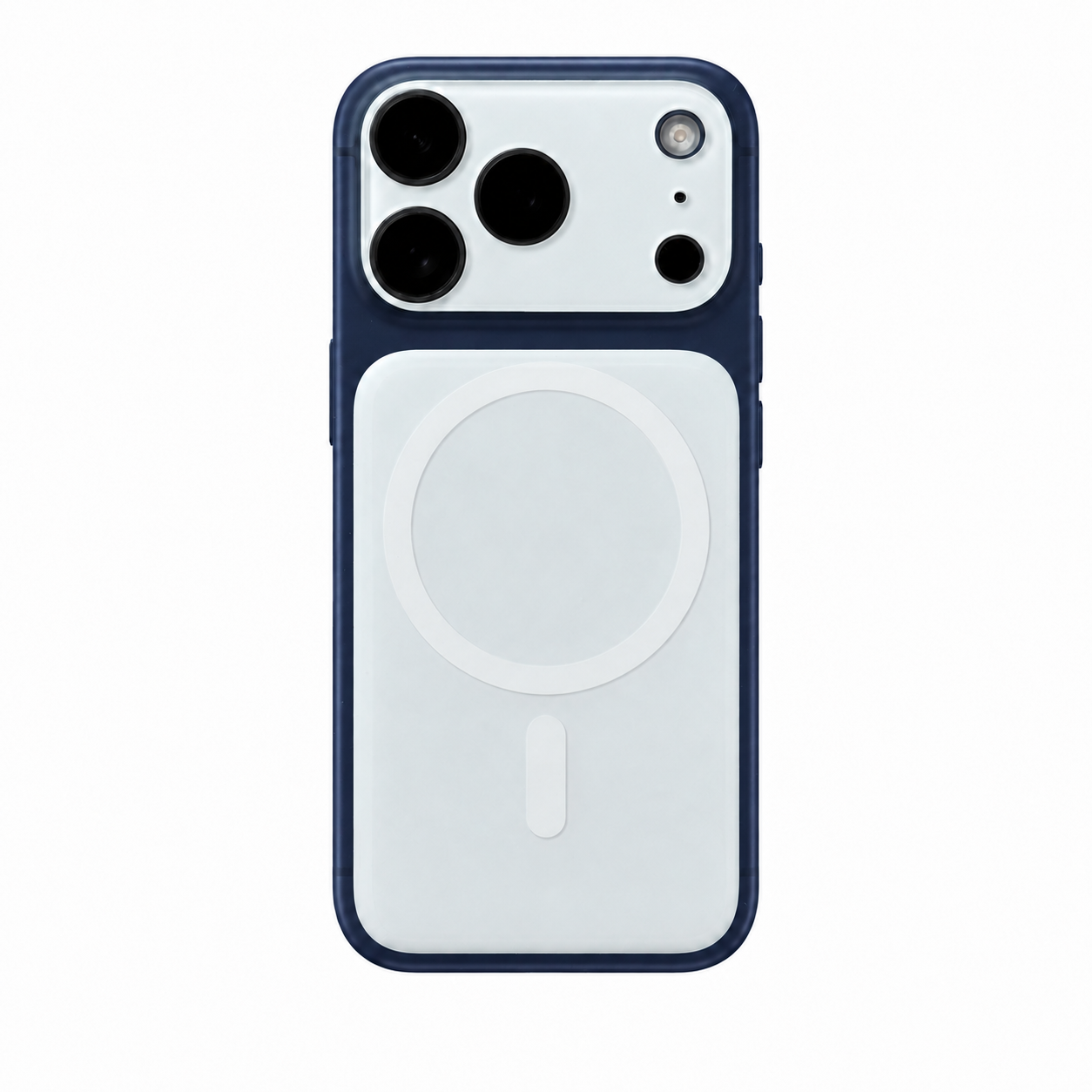
ZEERA AirFlat Lens Cover for iPhone Air
- Makes back flat
- Stops desk wobble
- Protects camera lens
- Slim matching look
- Easy clean design

Should iCloud Private Relay Stay On or Off?
For most iCloud+ users, keeping Private Relay enabled is recommended when websites and networks work normally.
Keep Private Relay On If:
- You want additional browsing privacy.
- You regularly use public Wi-Fi.
- Safari works correctly on your usual websites.
- You do not use network systems that require your real IP address.
Consider Turning It Off Temporarily If:
- A website refuses to load.
- A login or payment page fails.
- A network blocks access.
- A VPN or filtering tool conflicts with Private Relay.
- A website shows incorrect location information.
A temporary exception is usually better than permanently disabling Private Relay. Try allowing one website or changing one network setting first.
Can You Turn Off iCloud Private Relay in Chrome?
Chrome does not have its own iCloud Private Relay setting.
Private Relay is an Apple privacy feature integrated primarily with Safari and supported network requests. Chrome does not provide the same Private Relay controls.
If Chrome has connection problems while Safari works normally, check other possible causes such as:
- Chrome extensions.
- VPN software.
- DNS settings.
- Browser cache.
To manage Private Relay, use iCloud settings on your Apple device instead of Chrome settings.
How to Turn iCloud Private Relay Back On
On iPhone or iPad
- Open Settings.
- Tap your Apple Account name.
- Tap iCloud.
- Select Private Relay.
- Turn Private Relay on.
On Mac
- Open System Settings.
- Click your Apple Account name.
- Select iCloud.
- Open Private Relay.
- Turn Private Relay on.
If you previously disabled Limit IP Address Tracking for a specific Wi-Fi, cellular or Ethernet connection, enable that setting again separately.
Frequently Asked Questions
Do I need iCloud+ to use iCloud Private Relay?
Yes. Private Relay is included with iCloud+. Users with only the free iCloud plan cannot enable or disable Private Relay because the feature is not active on their account.
Why can’t I find or open Private Relay on my iPhone?
Check whether your Apple Account has access to iCloud+. If you only use the free iCloud plan, Private Relay is not available.
The option may also depend on software version, account status and regional availability.
Does turning off Private Relay cancel iCloud+?
No. Turning off Private Relay only disables that privacy feature. Your iCloud+ subscription and other services remain active.
Does Private Relay affect iCloud Photos or backups?
No. Turning off Private Relay does not affect iCloud Photos, iCloud Backup or files stored in iCloud Drive.
Is iCloud Private Relay a VPN?
No. Private Relay is not a traditional VPN. You cannot choose a server or country, and it does not route all device traffic like a VPN service.
Why did Private Relay turn back on automatically?
You may have selected the temporary option. Apple automatically restores Private Relay after the temporary disable period ends.
Bottom Line
Most people searching for how to turn off iCloud Private Relay are trying to solve a website or network compatibility problem, not permanently remove Apple's privacy feature.
If you have iCloud+ and need to disable Private Relay, use the iCloud settings on your iPhone, iPad or Mac. If only one website or network is affected, a smaller exception may solve the issue without turning off Private Relay completely.
If you only use the free iCloud plan, Private Relay is not active and there is nothing to disable.


